|
Turn Color Management Off — Emulate Photoshop4 Adobe Photoshop CS5 CS4 CS3 color management settings are found here:
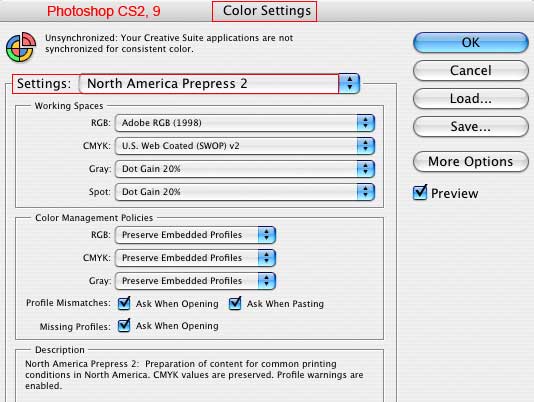
I cannot see one good reason for most of us to set certain Adobe preset work flows because some of these presets simply BREAK Photoshop's Color Management System (CMS). The problem is these color and policy settings leave Photoshop's Back Door wide open. COLOR MANAGEMENT OFF Emulate Photoshop 4: IN ACTUAL FACT, "You cannot turn Photoshop's Color Management Off " according to Photoshop color–management expert Andrew Rodney (and my lay understanding of the theory). Andrew's explanation is archived on gballard.net and includes HOW Photoshop 4 color workw - how PS4 deals with profiles. Photoshop, like all operating systems and applications, will always Assign-Assume-Apply a Default ICC Profile. The trick to getting true color on the monitor or print is either use embedded profiles in color-managed applications like Photoshop and Safari, or Convert the color to the target color space profile (like sRGB for use on the Internet). "Monitor Color" — The Ultimate Broken Workflow This is "Monitor RGB equals Working RGB" — my only point here is: Why base your color on a unique custom monitor profile? This becomes so obvious once you know what's going on I will spare you any further discussion...I will add that Mac OSX ColorSync defaults to Monitor RGB, but it would take a rocket scientist or a lot of trial and error to know when to second guess Mac color engineers who for years have defaulted their color to 1.8 gamma Monitor in a 2.2 Internet. Photoshop Settings That Work: In general, the only Settings that makes sense [to me] to learn how Photoshop handles profiles is "US PREPRESS DEFAULTS" and "North American Prepress 2" specifically for their fully–enabled Color Management Policies, Adobe (ACE) CMS Color Management System:
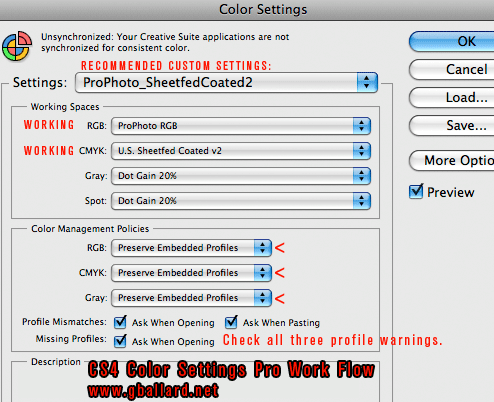
The problem is when we start setting Photoshop's Color Management Policies NOT to Preserve Embedded Profiles, and NOT to Ask us about Missing Profiles and Profile Mismatches — bad things can and do happen and the process becomes very mysterous to understand what is happening behind the scenes. Even Photoshop's default presets — Web Graphics Default — are bad Settings, in my opinion, because they break Photoshop's color management by turning off vital Color Management Policies warnings. Call me crazy, but I want to know when my file is Untagged, Unknown, Mismatched, Preserved, Ignored, Assumed, Applied, Assigned and/or Converted — the preset Color Management Policies in NORTH AMERICAN PREPRESS 2 and US PREPRESS DEFAULTS do that for me. AFTER you set North American Prepress 2 to reset a functioning preset — of course — THEN set your working RGB and Working CMYK to whatever you use and save it out with a name so you know when someone alters it (its name changes to Custom). Here is a look at my regular Photoshop Color Settings (I get there by first selecting North American Prepress 2, then changing my Working RGB and CMYK spaces, and then Save the setting)..
Working RGB = "ProPhoto RGB" IF YOUR COLOR MANAGEMENT SETTINGS ARE GOOD, but Photoshop's color is incorrect, please see: Color Only Looks Bad in Photoshop gballard.net. +++++ Tagged/Embedded Profiles RGB: It's safe to say the ONLY time a file's RGB color space becomes irrelevant to Photoshop is when:
The Ultimate Broken WorkFlow "Monitor Color" That "old school" workflow is simply disastrous to modern ICC–savvy workflows, and if we still don't understand — WHY — we need to keep asking around until we do.... FURTHER, base MonitorRGB on an inaccurate monitor profile — and the color situation gets even more hopeless. In essence, balancing any file off an inaccurate monitor profile (MonitorRGB) "ties" the file to an inaccurate monitor profile — meaning — and this is super important:
HERE if you would like a great learning Photoshop Web tutorial on Assign Profile Versus Convert Profile.
|
| Terms of Use • Privacy Statement • Site Map Home • About Us • Mission Statement • Press Kit • Contact Us  |