|

Photoshop Troubleshooting Tips
How to Troubleshoot Purge Deinstall Uninstall Reinstall Photoshop
Reset Photoshop Preferences
CC2014 CC CS6 CS5 CS4 CS3 CS2 PS 13 12 11 10
© 2004-2014 www.gballard.net
If Adobe® Photoshop® is running slow, freezing, crashing, locking up, unstable or otherwise flaky, FIRST be sure you have updated your Adobe applications, and Windows or Mac OSX operating system.
Where are the best expert tips about how to troubleshoot and uninstall Photoshop? How to reset Photoshop preferences, troubleshoot, step-by-step instructions with screenshots?
If you've done all the troubleshooting and reached the point of un-installing Photoshop to re-install, Archive install, clean install, or Erase your hard drive to "nuke" problems like force quit required, won't open and program errors, be sure to first Deactivate Photoshop so you don't waste one of your limited Activations when you re-Activate.
How to uninstall Creative Suite CC 2014 6 5.5 4 3 CS6 CS3 CS4 CS5 Photoshop PSCS CS4 PS12 PS11 should ONLY be done in OS-X from an Adobe Uninstaller app: HardDrive> Applications> Utilities> Adobe Uninstallers — versus simply trashing the application folder as Mac users were able to do with CS1 and previous versions of Adobe Photoshop.
Meantime, if you want some free troubleshooting advice, tips and expert help with Photoshop, please read on.
DEACTIVATION
If you are Uninstalling Photoshop be sure to first DEACTIVATE — Photoshop> Help> Deactivate — before uninstalling or you may need to contact Adobe customer service to explain the problem and perform a manual telephone activation. Again, be sure to perform the deactivation AND trash old Photoshop preferences before reinstalling Photoshop clean.
Is it legal to leave older versions of Photoshop installed when I upgrade? Will these older versions still run on my computer?
Basically, yes. Which versions of Photoshop will be able to work on your Power PC (PPC) or Intel Mac will depend on a combination of your operating system, processor, RAM, video card and Adobe Creative Suite. Things to read up on include: Universal applications, Rosetta emulation.
As far as leaving previous versions of Photoshop installed, I have CS, CS2 (for Image Ready), CS3, CS4 and CS5 installed on one of my Intel Mac Pros running 10.4.
Unless you have a reason for removing an older version of Photoshop when you upgrade, why not just leave it in place? I go back to ImageReady in CS2 quite often in Web publishing since ImageReady was replaced by Adobe FireWorks in CS3 (and I still don't get FireWorks).
|
| KNOWN PHOTOSHOP BUGS Issues & Crashers: |
| THE TOP PHOTOSHOP PROBLEMS
The biggest crashers I see on the forums involve buggy Photoshop PLUGINS | BAD PREFERENCES | TWAIN Scanner Drivers | FONTS | VIDEO Drivers | PRINTER BUGS | SYSTEM HAXIES | COLOR MANAGEMENT | PROGRAM ERRORS & CORRUPTION | UPDATES & SYSTEM MAINTENANCE
|
| RUN ALL UPDATERS & Basic System Maintenance! |
| I am always surprised to to see people running dot-zero versions of software, for example, using Photoshop 12.0 when 12.0.4 is the latest release...most known problems can be fixed by updating all your software and performing simple routine system maintenance procedures.
ADOBE
Photoshop Adobe CS software updater is conveniently found in Photoshop under Help> Updates... Running this process a couple times should update all your Adobe software, including Adobe Camera Raw Plugin.
Also see Adobe's article: Is Photoshop Up To Date? Or go to the ADOBE UPDATE pages CS5 Mac, or CS5 Windows and manually download the updaters.
OPERATING SYSTEMS
Apple Mac OS-X 10.6 10.5 10.5 software updater is ran from System Preferences> Software Update. Running this process a couple times should get your Apple apps and operating system updated.
We also need to update all printing drivers and print- monitor-calibration profiling software, 3rd-party plugins, font management applications, video card drivers and firmwares, and any system haxies — go to each manufacturer's website, download their latest updates and install them. Font Agent Pro, Suitcase, Wacom and NIK software are notorious for causing problems in Photoshop.
SYSTEM MAINTENANCE
Once you get everything updated, be sure to reboot your system and scan your hard drives for errors.
Mac users, go to Disk Utility> Repair Disk and Disk Utility> Repair Permissions — MORE OSX SYSTEM MAINTENANCE & TROUBLESHOOTING TIPS, including backing up and performing a clean or archive install process on the Mac.
Disk Utility> Repair Permissions and rebooting should fix common Permission-related errors, including some types of scratch disk full errors, errors saving or opening Photoshop documents.
|
| Could not complete your request because of a program error, scratch disk errors, kernel panics. |
| PROGRAM ERRORS in Photoshop
"Could not complete your request because of a program error" seems to be the catchall of Photoshop error codes these days and should be approached accordingly. Adobe Photoshop engineer Chris Cox wrote in the Adobe Photoshop forum about program errors in Photoshop:
Three wild guesses: video card driver, printer driver, or third party plug-in.
- Try disabling OpenGL drawing in preferences then restarting Photoshop.
- Try setting a different default printer, then restarting Photoshop.
- Try disabling all third party plugins, then restarting Photoshop.
Trashing Photoshop preferences and reinstalling Photoshop are also top troubleshooting tips that resolve program and system errors in Adobe Photoshop.
FREE UNUSED SPACE ON HARD DRIVES
Another place to look for problems is how much free, unused space is available on the boot and scratch disk hard drives — Get Info or Properties on the hard drive(s) and check how much free unused space is available — Photoshop likes A LOT of clean unfragmented disk space (and a lot installed RAM) to run fluidly and has been known to run poorly and even crash and corrupt files when hard drives start to get fragmented.
BAD RAM — Corrupted files
Bad RAM will also wreak havoc on Photoshop (and our sanity).
Bad Ram will surface as intermittent or total system instability, corrupted images, disk errors, kernel panics or it may prevent the computer from booting altogether — see my TROUBLESHOOTING BAD RAM GUIDE for more information.
COULD NOT SAVE FILE BECAUSE WRITE ACCESS WAS NOT GRANTED
"Could not save because write access was not granted" Adobe forum archive.
How to troubleshoot system errors, freezes (adobe.com guides):
- Windows | Adobe software | Mac OSX 10.x | Adobe software
|
| Plug-ins old 32bit versus 64 bit mode |
CS5 and CS6 now run in 64-bit by default. CS4 and earlier run only in 32-bit mode.
This brings up nasty compatibility problems when users try to run incompatible old or buggy 32-bit plugins on newer 64-bit systems. They may get lucky setting Photoshop up to run in 32-bit mode.
To change Photoshop to run in 32-bit mode on a Mac, do a "Get Info" on the Photoshop12 CS5 application icon, and check "Open in 32-bit mode" — until your 3rd party plugins are updated for 64-bit CS5:
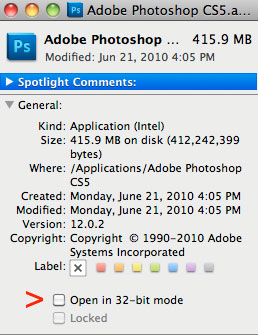
But remember: The big advantage in running Photoshop in 64-bit is it can use all your RAM (32-bit mode only allows Photoshop to use around 3GB RAM) — that is a huge deal breaker when working on larger files.
|
|
|
ROSETTA & Intel Macs, PowerPC, Universal apps
CRASHING — FLAKY
Intel-based Macs: Forcing a Universal application to run with Rosetta — Intel Macs running older versions of Photoshop under Rosetta (PowerPC PPC code) emulation are prone to Photoshop crashes and install problems. Please check out the Apple knowledge base article for more info.
To check Photoshop kind, go to its original application icon, do a Get Info, and see General> Application. If it says "PowerPC" and you are on an Intel Mac — you probably want to upgrade to a "Universal" version.
Photoshop CS3 & CS4 (Universal apps) can be set to run under Rosetta — Get Info on the app icon, check "Open Using Rosetta" — if you are on an Intel Mac be sure you do NOT have it checked to open under Rosetta. Users sometimes enable Rosetta so their old PPC plugins will work on Intel Macs, but running Photoshop through Rosetta is asking for trouble.
INSTALLER PROBLEMS
One of the problems with trying to install these older PowerPC versions on an Intel Mac is parts of their installers are PPC and their installers won't run properly...good luck.
|
| COLOR MANAGEMENT
If you are having color issues on the Internet, or your monitor doesn't match your prints, please review my color management articles:
BASIC COLOR MANAGEMENT THEORY
SEE ICC PROFILES IN ACTION in your color-managed Web browser
ADOBE PHOTOSHOP CS PRINTING TUTORIAL
TURN COLOR MANAGEMENT ON & Use my Embedded Profile, Please!
COLOR ONLY LOOKS BAD IN PHOTOSHOP Troubleshooting Monitor Profiles
ASSIGN v CONVERT Profile Tutorial
USE ONLY sRGB FOR THE WEB Here's the Proof!

PRINTING ISSUES
See my in-depth CS5 PRINTER TUTORIAL for trouble shooting printer issues, including professional, color-managed "Photoshop Manages Colors" & "Color Mode: Off (No Color Management) workflow.
A quick check: Make sure your problem printer is set to be your System default printer.
|
HOW TO RESET TRASH PHOTOSHOP PREFERENCES
Resetting, deleting or "trashing" your Photoshop user preferences to restore default settings is one of the first troubleshooting routines I try because it is pretty common for preferences to get corrupted or have a funky setting enabled somewhere that's too time-consuming to track down.
But actually, I might try testing in a new User account first because it not only rules out Photoshop preferences, it rules out all User preferences.
After deleting Photoshop's preferences, a new fresh set of preferences will automatically be created with Adobe factory default settings (except for any 3rd-party plug-ins that may have been installed — so be sure you track down remove those plugins to rule them out, these may include plugins for font utilities like Font Agent Pro FAP, TWAIN scanner drivers, NIK).
BACK UP PREFERENCES & SETTINGS:
I like to keep a BACKUP folder of my Photoshop preferences so I can just swap a suspect set of preferences for a known good set — that way I don't have to reconfigure all my custom settings if resetting them doesn't clear the problem — I can just drag my suspect prefs back in place and restart Photoshop and continue troubleshooting.
How to reset Photoshop's preferences using special key combinations (most Adobe apps use this method of keystrokes):
- First Quit Photoshop.
- Mac: Press and hold Command+Option+Shift keys, while opening Photoshop (you will get a prompt confirming you want to delete the Adobe Photoshop settings folder).
- Windows PC: Press and hold Alt+Control+Shift keys, while opening Photoshop (you will get a prompt confirming you want to delete the Adobe Photoshop settings folder).
To manually trash your Photoshop user preferences on a Mac:
- HardDrive> User> Library> Preferences> Adobe Photoshop CS5 Settings folder.
- HardDrive> User> Library> Preferences> com.adobe.Photoshop.plist file.
- There are several other Photoshop preferences there you may trash.
Relaunch Photoshop.
Crikey, where are my Photoshop Preferences located now?!:
- On Mac OSX 10.7 Lion, Apple has hidden or made invisible the User Preference folder where the Adobe preferences are stored — the good news is they are easy to locate once you know the secret shortcut:
Option+Command+click on the GO menu at the extreme top of the left screen (the Apple logo, Finder, File, Edit, View, GO) — a drop down menu will appear and you will see a "Library" option, click on it and your Preferences> Adobe Photoshop CS5 Settings folder will be there.
To erase, delete or reset Save For Web & Devices preferences:
- Open a small .jpg in Photoshop (to ungray the File menu).
- Mac: Press and hold Option+Command keys, while File> Save For Web Devices (you will get a prompt confirming you want to erase all Save for Web preferences).
- Windows PC: Press and hold Control+Alt keys, while File> Save For Web Devices (you will get a prompt confirming you want to erase all Save for Web preferences).
If the problem has not cleared by trashing or resetting the preferences, I would try testing in a New User admin account... after that an Uninstall and Reinstall Photoshop (below)...after that a Mac "Combo" system updater... then Archive install... then Erase and Start From Scratch, sorry.
|
| Problem clears or does not clear in a new User account |
| NEW USER ACCOUNT
THE HOLY GRAIL of troubleshooting.
Adding a new ADMIN user account to your computer (OS-X):
- apple.com: You can create individual user accounts for each person who uses your computer. Each new user has a separate home folder and can adjust his or her own preferences without affecting other users.
1) Choose Apple menu > System Preferences and click Accounts.
- 2) If some settings are dimmed, click the lock icon and type an administrator name and password.
- 3) Click Add (+) and type the user's name.
- 4) If you don't want to use the short name generated automatically, type a new short name. Once the account is created, you won't be able to change the short name.
- 5) Type the user's password in the Password and Verify boxes.
- 6) Type a hint to help the user remember the password if they have trouble remembering it at login.
- 7) Click Parental Controls and select options to determine what the user can do with the computer.
If you change your mind while you're creating a new user account, click Delete (-) to cancel.
Probably the most important and decisive troubleshooting clue will come if the "problem clears in a new User account," or "doesn't clear in a new User account."
GOOD NEWS
If you create a new User account — and the problem clears — you have a corrupted User preference or funky setting somewhere. This is considered good news because it generally means your System and hardware are good and you can just switch over to the new User and get back to work.
BAD NEWS
The bad news will be if the problem doesn't clear in a new User account — the problem is most likely in your System or hardware — and you need to continue troubleshooting.
|
| INTEGRITY OF THE PHOTOSHOP DIRECTORIES
MOVING SYSTEM OR APPLICATION ITEMS FROM DEFAULT LOCATIONS
Be sure you have not inadvertently moved anything to do with the directories Photoshop uses. For example, some users move their Photoshop application folder or actually drag the application icon onto their desktop to use as a shortcut (instead of making an alias to it).
RENAMING THINGS & USING ILLEGAL CHARACTERS
Be sure you have not used any illegal Unix characters (see Mac and Windows OS File/Folder naming rules portfoliofaq.com for complete information). These illegal characters may include: * ~ / + ! " é ñ ; : ) ?
Even using an illegal character in a folder or volume name (like a scratch disk or folder) that Photoshop must access can bring up an error message.
PERMISSIONS
Having user Read and Write permissions to access, open or save may be taken for granted by most users, but permission to access items, including the designated Scratch Disk, data folders, hard drives, servers, even the application folders can become problems.
Moving Photoshop over to new machines (Migration Assistants) — instead of installing fresh — seems to create permission problems that must be resolved. If you get Scratch Disk errors, make you you have read/write privileges to use the Scratchdisk.
CONCLUSION
Moving Adobe folders from their default locations, renaming things and permission issues may not only break the Adobe software updater or installer uninstaller processes — but even Photoshop's ability to successfully open itself or function properly.
So be careful dinking around in these areas and use common sense.
|
| UNINSTALL & REINSTALL
BEFORE GOING FURTHER — and only if the problem has NOT cleared in a new User account AFTER you've ran all the updaters and System maintenance procedures, removed all peripherals (USB, FireWire, Ethernet cables, Bluetooth and wireless connections) — and looked at everything else — would I proceed to uninstalling and reinstall Photoshop.
Be sure to use only use the original Adobe install disk or download files — being absolutely certain you FIRST cleared out all the old preferences — because I recall Adobe's Uninstall and Reinstall routines may leave your old preferences untouched, so if the User prefs are bad, you may still have the problem.
Where are the Adobe uninstallers located?
On the Mac, some previous Adobe Uninstallers are located here: Hard drive> Applications> Utilities> Adobe Installers.
Here is a list of official Adobe articles related to uninstall-reinstall Photoshop:
Then after reinstalling, be certain you run all Photoshop Updaters adobe.com or Help> Updates... and always reboot before testing.
|
FONT ISSUES (imagine that)
Bad fonts and font caches are prone to corruption and cause Photoshop to crash.
HERE are Adobe instructions on how to troubleshoot and clear font caches in CS5.
HERE is a Macworld article on clearing font caches in Leopard.
FONT AGENT PRO 4 (FAP) also had bugs that cause an opening lag and missing font warnings anomalies in Photoshop — troubleshoot these known problems by simply removing the FAP plugins from Applications> Adobe Photoshop CS5> Plugins. Insidersoftware has posted bug fixes to their CS5-10.6x font problems with their font-management app (FAP4) and their Photoshop plugins.
Users have also reported problems with Suitcase. Plugins for Suitcase are managed from Suitcase itself so try unchecking the check box for Photoshop and you may not have to "Force Quit" Photoshop again.
|
VIDEO DRIVERS (cough, cough)
On the Microsoft® Windows® side, buggy and out-of-date video card drivers are causing Photoshop problems, including crashing, redraw anomalies, color errors, corruption... be sure to update your video card software and firmware.
The Apple® Mac® operating system Software Update generally handles video driver updates, so if you're on a Mac, chances are you don't need to worry about finding updates for your video cards. If you do find a video updater for a Mac, I advise you to slow down and research it thoroughly before installing it.
ISSUE: Photoshop CS5 won't open .psd files or new files
Most likely all you need to do is update your video card driver from the GPU maker's website. What you're seeing is a bug in the video card driver related to OpenGL, and Photoshop is defaulting to drawing the image with OpenGL, but gets no errors from the driver, so Photoshop doesn't know that it didn't work. (Chris Cox, Adobe forum).
OpenGL bugs: Apple and Microsoft have known problems with OpenGL on some video cards...if you want to rule OpenGL out in Photoshop, go to Preferences> Performance> GPU Settings and uncheck Enable OpenGL Drawing as shown in this screenshot:
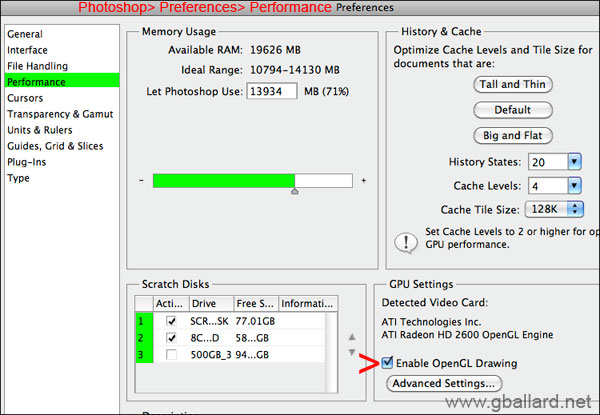
If your Photoshop Open GL options are grayed out — you cannot select "Enable OpenGL Drawing" or check boxes in Advanced Settings in Photoshop preferences — more than likely your video card is unsupported, it does not support OpenGL.
See Photoshop Help / GPU, OpenGL support | Photoshop CS4, CS5.5 "Photoshop CS6, CS4, CS5 leverage the graphics display card's GPU, instead of the computer's main processor (the CPU) to speed its screen redraw. For Photoshop to access the GPU, your display card must contain a GPU that supports OpenGL and has enough RAM to support Photoshop functions — at least 128 MB of RAM — and a display driver that supports OpenGL 2.0 and Shader Model 3.0..." (Adobe site).
TYPICAL CYCLES OF VIDEO DRIVER PROBLEMS
Snow Leopard 10.6.4 update seriously broke the NVIDIA drivers making Photoshop unusable for many users using NVIDIA video cards. This was reportedly fix with Apple' s August 2010 NVIDIA GRAPHICS UPDATE for SL Snow Leopard DOWNLOAD.
Leopard 10.5 on Intel Macs running 30-inch Apple monitors may exacerbate the crashing due to video card driver issues.
Leopard 10.5.8 Snow Leopard 10.6.3 CS3 CS4 CS5 Photoshop crashing when moving layers in Layer pallet and dragging layers between multiple windows have caused me grief and Adobe has pointed to Apple bugs in 10.5 and 10.6 that affect CS3, CS4 and CS5 — most notoriously "QuickDraw" bugs that crash Photoshop.
Adobe Photoshop engineer Chris Cox explained the problem in a June 2010 forum post:
- In the simplest terms: Apple crashes often in _SetDstBits32RGBA, _GetDstBits32RGBA, and SetPixMapPixel (these are usually the top symbol on the stack in the crash report)
These crashes appear to have been introduced in MacOS 10.5, and improved slightly in MacOS 10.6, but still continue to be seen in MacOS 10.6.3.
These crashes do appear to be x86 specific (I cannot find any reports of a similar crash for PowerPC).
These crashes occur in multiple applications that use QuickDraw, and from many different parts of Photoshop (including in third party plugin UI).
These crashes are still seen in Photoshop CS5 (a Cocoa app) when third party plugins or scanner drivers use QuickDraw (in the 32 bit addressing mode, of course).
The crashing functions are low level accessors used from multiple parts of the QuickDraw code, and cannot be coded around.
PS: Chris Cox wrote me that Photoshop CS5 doesn't use Quickdraw code, so I ugraded and lo and behold my Quickdraw crashes virtually stopped.
|
| SYSTEM HAXIES
System haxies are notorious for being broken by both Windows and Apple OS updates.
If you are running any small interface and functionality hacks that tweak the system or existing applications that work by injecting code into programs as they load, chances are you will have problems with them sooner or later.
Don't forget to remove them from the suspect's list....
|
| Some old rants, bugs, fixes & work arounds... |
CS2 Photoshop 9 PS9 Program Errors messages using Tiger 10.4x:
"Could not complete your request because of a program error" when trying to open a file.
“Could not create a new document because of a program error” when trying to make a new file.
Certain Epson print drivers including some other print drivers are causing these Photoshop error messages under Mac Tiger 4.0.
- SOLUTION FIX to try: Delete the Epson Print drivers from Print Center, Disconnect the internet modem ethernet/telephone, run Disk Utility Repair Disk, purge Photoshop preferences (and Photoshop application if necessary), run all Adobe and OS updaters... continue with the basic troubleshooting Photoshop.
- Check with Epson for latest print drivers. Some users have reported that some Epson drivers are incompatible with Tiger.
- Some users have reported that running Disk Utility Repair Disk and/or fsk -y fixed the Epson driver problems, others have reported it didn't fix the problem.
An Adobe BUG that is causing Photoshop CS2 PROGRAM ERRORS when opening files in Photoshop CS2 is directly related to Adobe CS2 Version Que.
- WORKAROUND try: 1) turn off Version Que, (2) Open Illustrator (to deal with any font conflicts) then open Photoshop and the problem files.
Microsoft fonts Entourage text copied to the clipboard are also causing Photoshop CS1 and Illustrator to crash on opening, Photoshop won't open. (This was supposedly fixed in CS2.)
- FIX SOLUTION is to clear the clipboard of the the Microsoft or Word text.
Either Copy some Finder fonts to the clipboard or Log Out Log In, and then open Photoshop.
Open Text Edit, create some text and Copy it (in effort to flush the Clipboard).
Another Apple bug for Photoshop crashing on opening, not able to launch, Photoshop won't initialize: if you have UK GMT timezone set.
Aside from the above issues, Photoshop CS and CS2 seems to be super sensitive to bad fonts, so be sure to rule out the fonts if you are having stability issues.
+++++
In real-world layman's terms, my fire drills for troubleshooting Photoshop crashes, freezes, lockups, including crashing, freezing, locking up, Unexpectedly Quitting:
Rule out RAM gballard.net is also important troubleshooting. In addition to crashing, kernel panics, Type 1 Type 2 Type 3 errors, Unexpectedly Quitting, corrupted files and disk errors, typical symptoms of bad Ram in Photoshop include rows lines patches of bad pixels on screen that also print (the actual file is being corrupted). If the bad pixel areas are on the monitor, but do not print (the actual file is not corrupted), video card or video-card drivers are prime suspects. Remember, video cards also have flash firmwares to flash update.
Test Hardware Interface gballard.net for the hardware's ability to transfer data free of corruption on hard disk drive interfaces (such as SCSI, IDE, etc.). See the bottom of the linked page and DOWNLOAD Timothy A. Seufert's dctest. Dctest assumes that your CPU and memory and disk are working fine. There are OS9 and OSX versions in the download.
Also be sure to remove all non-Apple USB, FIreWire devices, including the Ethernet cable from the network to rule them out.
Photoshop CS CS2 CS3 CS4 seem to be super sensitive to bad fonts, so be sure to rule out the fonts if you are having stability issues.
Also make sure Photoshop application folder is in its default location and that it has not been renamed: HardDrive> Applications: Adobe Photoshop CS4
Troubleshooting Photoshop won't install, from the original Adobe Install CD, try copying the 'Adobe(R) Photoshop(R) Folder' (100 to 150 MB) to the desktop - this folder contains the installer and all its files. Eject the CD, and run the installer from the desktop.
- This copy-installer-folder-to-hard-drive technique works on the Adobe installers that require us to verify an original full install CD (insert the full retail install CD, when the installer asks for it point it to the CD).
My most decisive TroubleShooting technique — Empty = Versatile gballard.net — is to Test on an OS–Suspect Level. In less than an hour, this method effectively rules out the hardware, the install and its other third–party issues.
Ann Shelbourne offers some sage font troubleshooting advice, Ann wrote:
- Have you cleaned out your AdobeFnt.lst files recently?
Do a Search for "adobefnt" and delete all that you find — except for "AdobeFnt.db".
(Don't worry, they will re-create themselves as needed).
- Have you ruled out conflicts between System fonts and your other fonts? (Ann continued)
- Have you ran Cocktail?:
Launch Cocktail
Choose "Pilot"
Check everything on the first dialog and set to "Automatically: Restart"
Then click Options and check everything except "Cookies"
Return to main panel and click "RUN"
It will take just a few minutes and should improve performance.
Wade Zimmerman has found a quirky FIX for Photoshop CS (8.0) not opening, crashing on launching, under Panther 10.3.2, Wade wrote:
- Try changing the time zone then change it back to the correct time zone that you are in but first trash your PS Preference, if that does not work try changing the City within the time zone and then change it back. Or some kind of combination. But again, each time trash PS preferences maybe even restarting the computer.
- Ann Shelbourne added, if you are in the UK, don't choose GMT but choose your nearest city by name.
This sounds goofy — but it has worked for a lot of users.
+++++
In severe cases — to prepare a Mac for a Apple Authorized Service Provider (AASP) — I follow my troubleshooting MELTDOWN procedure gballard.net. In addition to repairing any Bad Blocks, this procedure will be conclusive in a couple hours, plus the time it takes to ZeroWrite Write Zeros, if the problem is hardware or installed software or damaged hard drive....
+++++++
MAC OS9:
Please see: TroubleShooting Photoshop OS 9.gballard.net.
If you're trying to rule out Photoshop corruption or reset Default settings, FIRST try trashing:
- HardDrive> System Folder> Preferences> Adobe Photoshop 7.0 Settings folder.
Relaunch Photoshop.
If the problem has not cleared, Trash the following:
- HardDrive> Applications (MacOS9)> Adobe Photoshop 5/6/7 folder.
- HardDrive> System Folder> Preferences> Adobe Photoshop 7.0 Settings folder.
Reinstall Photoshop.
Run all Photoshop Updaters adobe.com.
If the problem has not cleared after purging/reinstalling/updating Photoshop, the problem is likely outside of Photoshop in third–party or a corrupted install. At this point we generally need to Initialize/StartFromScratch....
+++++++
Troubleshooting a Windows PC:
LenHewitt wrote - 01:00am Feb 3, 2004 Pacific (#1 of 88)
Have you tried, as a diagnostic, turning your hardware video acceleration down to zero?
If that helps it indicates a video driver problem — check the video card manufacturer's site for updated drivers.
Otherwise, suggest you do a complete uninstall:
From C/Panel Add/Remove programs> delete the whole of the Photoshop CS folder tree and the \Documents and Settings\~username\Application Data\Adobe\Photoshop\8.0 folder tree and then re-install.
|
| Adobe and Photoshop are either registered trademarks or trademarks of Adobe Systems Incorporated in the United States and/or other countries.
Terms of Use • Privacy Statement • Site Map
Home • About Us • Mission Statement • Press Kit • Contact Us

|
|
