APPLE OSX 10.6 SWITCHED DEFAULT PROFILE MONITOR GAMMA TO 2.2
Apple has changed their new OS-X 10.6 operating system, aka Snow Leopard, to set its default monitor RGB to 2.2 gamma. Apple has historically used 1.8 gamma by default.
This is actually pretty big news for Mac users who ever wondered why their Internet browser color looks light and washed out, or why their web photos look great in Photoshop and in Safari, but display bad color on the web and on Windows PC computers like XP and Vista.
The reasons for switching now may be because enough people complained to Apple about their approach to using 1.8 monitor gamma and ColorSync, or if new young blood at Apple was able to make the changes. It remains to been noted, however, if the Apple geniuses follow through and enable a ColorSync setting to assume sRGB, versus ColorSync defaulting to a custom device-dependent monitor profile.
Apple will have to make the changes to how ColorSync treats untagged color if it wants to solve fix the existing red saturation problems with the new popular wide-gamut monitors.
ACCORDING TO ADOBE PHOTOSHOP ENGINEERS — Apple changed Lion 10.7 ColorSync behavior to default untagged and unmanaged color to sRGB (OSX, 10.7 and higher, no longer applies its monitor profile to untagged color or unmanaged color) — this is great news....
HERE if you want help CALIBRATING MAC MONITORS.
PROBLEMS WITH 1.8 Mac GAMMA, Pre 10.6 ColorSync Color Management System
The problem the OS9 OSX 10.4 10.5 Mac OSes has always had is how ColorSync treated untagged RGB — and of course the Internet is based on 2.2 gamma sRGB — ColorSync is engineered to apply its Default monitor profile to untagged RGB, and it can't be changed.
This is an antiquated approach for how color management works. The color shift is easy to PROOF in Photoshop, or your web browser.
HERE if you want help TROUBLESHOOTING MAC COLOR PROBLEMS.
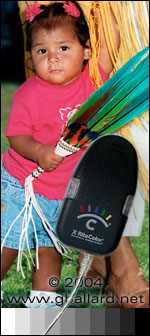
Evaluate these two untagged photos in your web browser:

Normal (untagged sRGB 2.2 gamma) - Hover Over (untagged Apple RGB 1.8 gamma)
In any Internet browser, you should see a big brightness shift when holding your cursor over the above image and moving off it.
I cover this issue in-depth on my Web Browser Color Management Tutorial online...
####
USE 2.2 MONITOR PROFILE GAMMA
My best advice — even if your Mac is running Tiger 1.4, Leopard 10.5 and all earlier systems — calibrate profile your monitor to 2.2 gamma and 6500 (Native White Point).
AND READ apple.com article: "Color and gamma settings for print and web."
####
Please read this web tutorial for more information about web browsers and color management troubleshooting.
For the main tutorial on the color shift with Adobe RGB (1998), for example: The colour looks unsaturated washed out when Photoshop "Save for the Web" or "Jump To" or "Edit In" ImageReady, and/or on the internet, please see my:
Color Shifts on the World Wide Web: PhotoShop® "Save for Web" ImageReady®.
For my ASSIGN Versus CONVERT to Profile tutorial.
+++++++
To DOWNLOAD ALL the high-resolution 300 ppi tutorial files to print in AppleRGB, AdobeRGB, sRGB, ProPhotRGB, and all the 72 ppi tutorial JPEGS, including the full unaltered original PDI_Target.jpg PhotoDisk PhotoDisc PDI Target file and GettyImages®, PhotoDisc® Licensing info:
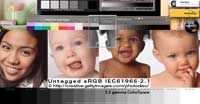
DOWNLOAD PDI high-resolution reference images — now with ProPhoto RGB targets!
###
by: ©2004 G. BALLARD • www.gballard.net
Note: G. BALLARD prefers a shredding if he is wrong or unclear.
Please read the www.gballard.net site USER AGREEMENT, and site DISCLAIMER for legal issues regarding your use of the www.gballard.net site.
G. Ballard, www.gballard.net, receives no compensation from, and is not affiliated with Adobe Systems, Inc., or Bruce Fraser or his associates or their many commercial enterprises.
|