Photoshop Color Issues on Macs
The Short Answer
In my lay style for lay Mac users (like me)
© 2008 www.gballard.net
Main Site

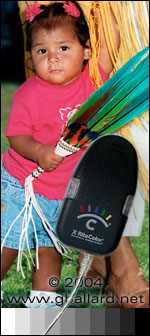
Accurate Color Test Picture

ABOVE IMAGE
is optimized
full color gamut
perfect saturation
best corrected color
properly set black point
proper set white point
proper gray balance
PC native gamma
in tagged sRGB.

- Notice the neutrality
and distinct steps in
the gray bar. -

Above ROLLOVER
SIMULATES
bad monitor calibration
and/or a bad file
clipping colors
clipped histogram
clip blacks whites
over saturated RGB
color cast color
color tints
green magenta red
blue yellow
white point
posterized colors
global bad color.

BAD MONITOR PROFILES
can also cause
good files - these files
to display in
Black & White sepia
with no color or in
weird neon colors.

###

Professional Portfolio

PROFESSIONAL
COLOR PORTFOLIO

Large on-line gallery
of pow-wow photos
professionally
photographed
optimized
designed & published
by G. BALLARD.

This tutorial is to provide a short answer to understand and fix color problems on the Mac.

THE SHORT ANSWER

The short answer still seems to be:

1) Calibrate-profile monitor to 2.2 gamma, d65/6500.
2) Convert to sRGB before Save For Web (or ImageReady or FireWorks).
3) *Do not embed ICC profiles in web images.

This subject still has some goofy pitfalls that I won't go into on this page -- like 1.8 Mac gamma, wide-gamut monitors, Mac OSX/ColorSync -- but the above 3 tips are the safest moves and represent my professional workflow.

*I will qualify my general "do not embed" ICC profiles in web images advice to those who are trying to learn basic rules about why to strip or embed profiles on the internet (so please read the link to better understand how to manage color spaces and profiles in web images and graphics).

TROUBLESHOOTING COLOR ISSUES

Color problems are very easy to troubleshoot and verify in Photoshop (and may be confirmed in Safari web browser):

1) In Photoshop> Edit> Color Settings, set "North America Prepress 2" (to Preserve Embedded Profiles, and to check all three Profile Mismatch options to get us on the same page).

2) DOWNLOAD the PDI Target reference image and open the Adobe RGB version in Photoshop.

3) Save For Web as .jpg High (leave Embed ICC Profile unchecked to strip the profile).

4) Drag the untagged JPEG into an open web browser window like Safari, or IE Internet Explorer or FireFox (the web browser will open the image in its window).

5) Evaluate the results (does the Web browser match Photoshop?).

THE PROBLEM - Nail it in Adobe Photoshop

If you note the problem here in your web browser (step #4 above), another important test to help us figure out where the problem lies inside of Photoshop is:

1) Open the PDI file in Photoshop (be sure you have set "North America Prepress 2" in Photoshop's Color Settings as noted above, Troubleshooting Color Issues, step #1).
2) Photoshop> Edit> Convert to Profile: sRGB (to be sure you are in the sRGB color space).
3) Photoshop> View> Proof SetUp (try Macintosh RGB, Windows RGB, Monitor RGB).

THE CONCLUSION
In step #3 above (Soft Proofing sRGB in Photoshop):

1) WindowsRGB should have ZERO shift because the file is based on sRGB, aka WindowsRGB (and Photoshop is SoftProofing the sRGB through the monitor profile).
a) If Windows RGB darkens up a lot, you need to re-profile monitor to 2.2 gamma.

2) MonitorRGB should have a small color saturation boost, if any change.
a) If MonitorRGB shows zero change, you need to go back to Photoshop> Edit> Color Settings and change Working RGB to something other than MonitorRGB — never set Photoshop's Working RGB to Monitor RGB!
b) If MonitorRGB goes super saturated in the reds you are using a wide-gamut monitor on a Mac (this is a known problem Mac ColorSync has with these monitors).

3) MacintoshRGB should lighten and wash out.
a) If Macintosh RGB does not lighten up a lot, you need to re-profile monitor to 2.2 gamma.

If steps 1-3 do not behave as outlined in The Conclusion — and you can confirm you are profiled to 2.2 gamma, and you have set "North America Prepress 2" in Color Settings, and previously Converted the file to sRGB — then something else is going on...like a bad monitor profile, or some obscure default setting you changed, or some corrupted file.

At that point — we need to rule out your User account and routine system maintence.


PROOF my theories HERE
in your color-managed web browser — a side-by-side comparison tutorial of tagged and untagged AppleRGB, sRGB, Adobe RGB (1998).

BEST Photoshop Color Settings

Photoshop Color Settings

If your are looking for the best Photoshop Color Settings, color profiles, to use — I recommend starting out with Working Spaces RGB: sRGB (because it it the safest bet).

I use Adobe RGB 1998 and other pros use ProPhoto RGB, but AdobeRGB aRGB and ProPhotoRGB pRGB are two of the worst color profiles to use if you don't understand color management.

After you understand the higher-gamut working spaces and Photoshop's Color Settings, then set Working Spaces to your desired ICC profiles.

Just be sure to set Ps Color Management Policies and Profile policies as noted.

Color management Policies: Set all three options to Preserve Embedded Profiles.

Profiles options: Check all three boxes.

+++++++

+++++++

+++++++

+++++++

+++++++

PDI TARGET DOWNLOADS

To DOWNLOAD ALL the high-resolution 300 ppi test files to print, sRGB, Apple RGB, Adobe RGB (1998), ProPhoto RGB, plus the 72 ppi Web tutorial JPEGS, including the full unaltered original PDI_Target.jpg PhotoDisk PhotoDisc PDI Target file and Getty Images, PhotoDisc Licensing info:

PDI CALIBRATION PHOTO
DOWNLOAD PDI high-resolution reference images — now with ProPhoto RGB targets!

###

by: ©2008 G. BALLARD • www.gballard.net
Note: G. BALLARD prefers a shredding if he is wrong or unclear.

    Please read the www.gballard.net site USER AGREEMENT, and site DISCLAIMER for legal issues regarding your use of the www.gballard.net site.

    G. Ballard, www.gballard.net, receives no compensation from, and is not affiliated with Adobe Systems, Inc., or Bruce Fraser or his associates or their many commercial enterprises.

Terms of UsePrivacy StatementSite Map
Home
About UsMission StatementPress KitContact Us