Color Shifts on the World Wide Web, Internet
Photoshop "Save for Web" Changes in ImageReady, Fireworks, Flash, Dreamweaver, After Effects, Final Cut Pro
by Gary G. Ballard, San Diego, CA, USA.
Why does my color change when I Save for Web & Devices or look different in Photoshop than on the Web?
Bad color problems generally fall into FOUR PROBLEM AREAS.
This demonstration will make more sense if you use a modern color-managed web browser like Safari, FireFox, Google Chrome. This color tutorial also recommends using Adobe CS6 Photoshop CS5 CS4 CS3 CS Ps13 Ps12 Ps11 for best results.

|
| #1 PHOTOSHOP Working RGB is different from sRGB–type Color Space. |
Source Profile > Monitor Profile
THE NUMBER ONE REASON why Photoshop color looks bad or shifts on the World Wide Web or looks differently in applications like Adobe Fireworks, Dreamweaver, After Effects, Save For Web & Devices, Flash, Safari, Microsoft Internet Explorer IE, Firefox, Chrome, Google, Windows Explorer and Apple's Finder is because:
- Your color is going from a color-managed application (Photoshop) to an unmanaged application.
- Photoshop is no longer CONVERTING the source color to the monitor profile.
- Un-managed applications generally send the source color "straight through" to the monitor unchanged.
- Color-managed Web browsers generally send untagged elements "straight through" to the monitor unchanged, including CSS, HTML, Hex colors.
- Hence, the change you see outside of Photoshop is the difference between your source and monitor ICC profiles.
This is very easy to prove in Photoshop by opening your document (use the embedded profile), and 1) View> Proof Setup: Monitor RGB, or 2) Edit> Assign Profile: your monitor profile — these moves should both duplicate the change you see in un-managed applications.
Here is an excellent example to demonstrate my point using Tagged and Untagged sRGB — use a color-managed Web browser!
sRGB
Standard sRGB is the Proper DEFAULT PROFILE For Web Publishing:
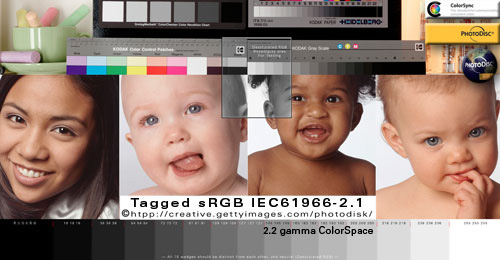
Hold mouse over photo to rollover Untagged version.
The rollover is effectively stripping the ICC profile.
The two photos are identical except one is tagged with an embedded profile.
If either rollover is displaying with an strong red saturation boost, see my WIDE GAMUT MONITOR write up for a simple explanation about why this is happening and how to work around it.
Why sRGB, you ask?
Microsoft Windows and Apple Lion 10.7 operating systems both default to the standard RGB sRGB color space. What this likely means is they base their color on the sRGB profile and send all un-managed color straight to the monitor unchanged.
That would mean if we base our Photoshop color, Hex color, HTML CSS color, and application color on sRGB -- we will achieve color "consistency" and our color will pass through and look okay on most sRGB-type monitors (but not with the "accuracy" color-managed applications deliver because sRGB is not an exact "match" to our monitor space, only a proper custom monitor profile can match our monitor space).
Smart color-managed Web browsers, like Safari and Firefox, will read embedded profiles and Convert them to the monitor profile for Photoshop-like "accuracy" — but color-managed browsers can't deliver visual "consistency" because they still pass untagged elements straight through to the monitor unchanged (with the exception of Firefox Value1 "Full Color Management").
This mismatch is easy to observe in the G BALLARD logo rollover using Safari. Non-managed browsers will "match" all three elements (because all three elements are based on sRGB), but they will not display them "accurately."
|
 |
COLOR CONSISTENCY OR COLOR ACCURACY
A real problem for Web designers and color-managed Web browsers is mixing tagged and untagged color where the graphic background needs to "match" or blend seamlessly into an HTML background color. The choice really boils down to designing Web pages for color consistency or color accuracy (Firefox "Full Color Management" achieves both)....
- The above HTML box is filled with Hex-specified AF641E color — in most if not all Web browsers the Hex color is being sent straight to the monitor unaltered (except Firefox with its "Full Color Management" enabled).
- The Photoshop logo backgrounds are filled with the exact same AF641E.
- The tagged and untagged pixel-based logo graphics are identical except one has an embedded sRGB profile and the other had its profile stripped for this example.
- The untagged logo RGB numbers are being sent straight to the monitor unaltered in most if not all Web browsers (except Firefox with its "Full Color Management" enabled).
- The embedded profile in the tagged logo file — in all fully color-managed web browsers — is being read and Converted to the monitor profile for accurate display. Non-managed browsers ignore the embedded profile and send the RGB straight through to the monitor unaltered.
If you are not crystal clear on how your apps or devices Assign/Assume/Apply or Pass Through RGB color spaces (the point I am exhausting here), I will recommend figuring it out now BEFORE trying to go any further with the theory because it lays a cornerstone to conceptualizing basic color management theory — and you will be lost without a 100-percent grasp of this Default, Source and Pass-Through concept.
|
| #2 The Monitor RGB profile or source document is in Apple 1.8 "Mac" monitor gamma color space (or Adobe RGB 1998 or other non-sRGB type color space). |
THIS ISSUE HAS NOT BEEN A PROBLEM FOR YEARS NOW...
Apple's legacy 1.8 monitor and system gamma — Leopard 10.5 and earlier — is still a problem to deal with if you haven't switched over to 2.2 gamma or have old images in Apple RGB monitor-type color spaces.
Apple RGB
Mac legacy 1.8 gamma:
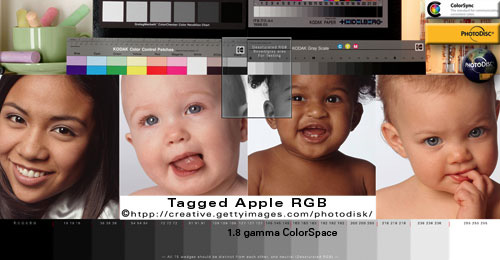
Hold mouse over photo to rollover Untagged version.
If you are using a color-managed browser, you will see a brightness shift in the rollover.
If you are using a non managed browser, both images will look exactly the same.
This example demonstrates the problem Apple's legacy system and monitor default 1.8 gamma has on the Web — and why Apple switched its default monitor RGB to 2.2 gamma (in 10.6), and its system default space to sRGB (in 10.7).
What this means for people still using 1.8 gamma monitor profiles, they are seeing 98 percent of the Internet lighter and washed out because of the default gamma mismatches.
If the above Apple RGB images have the least amount of color-brightness shift, I recommend calibrating your monitor to 2.2 gamma.
|
Adobe RGB (1998) rollover
A wide-gamut color space:
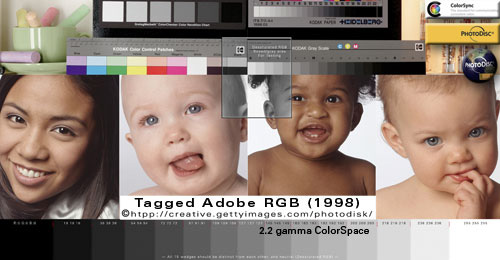
Hold mouse over photo to rollover Untagged version.
If you are using a color-managed browser, you should see a saturation shift in the rollover.
If you are using a non managed browser, both images will look exactly the same.
As a common Photoshop working space, Adobe RGB (aRGB) must be carefully watched so it doesn't get used on the Internet or inside un-managed applications because it is so different that the operating systems and Web default space (sRGB).
In fact, aRGB in color-managed applications is a great editing and working space, but my advice here is to stick with sRGB unless you know what you're doing because if you forget to Convert aRGB to sRGB for the Web and unmanaged workflows, it usually ends up desaturated (as in the above un-tagged rollover).
To Convert Adobe RGB to sRGB in Photoshop, simply go to Edit> Convert to Profile: sRGB — or File> Save For Web & Devices.
WIDE GAMUT DISPLAY
If the above Adobe RGB images have the least amount of color shift — they look the best of all my examples — you are likely using a WIDE GAMUT MONITOR.
|
| #3 The monitor profile is bad. |
If your monitor profile is bad (its calibration is off) or defective it can't display color properly and you shouldn't trust what you see even in color-managed applications like Photoshop.
Likewise, if your legacy photos were adjusted on an inaccurate monitor, they will need to be corrected on a good monitor and saved.
To get started, you will need to "calibrate" the monitor...and then use a color-managed picture editor like Adobe Photoshop, Elements, Lightroom, or Aperture to adjust each image for accuracy.

I recommend getting a known good calibration image like the Photodisc PDI reference target WhackedRGB.jpg so you have a good reference image to judge your device profiles and workflows.
If the Color Only Looks Bad in Photoshop and other color-managed programs like Apple's iPhoto, Safari, and Preview applications, you have some troubleshooting to do and possibly some work-flow adjustments.
|
| #4 The Embedded Profile is ignored or wrongly assumed |
This reason carries over into previously mentioned areas, but is is worth saying again.
If you are using color-managed applications and all your project elements (HTML, Hex, images, graphics) have profile information embedded (most highly unlikely on the Web) — we could in theory use any profile(s) we want.
But the reality is — we cannot control system, HTML Hex color, or other people's monitors or their color management settings.
We can, however, intelligently target them (and cross our fingers).
Photoshop Color Management is broken, please see
Turn Color Management On & Honor My Embedded Profile, Please!
Photoshop ASSIGN V CONVERT to profile tutorial — don't confuse the two!
|
| TIPS & TECHNIQUE for working in un-managed workflows |
Web Publishing
NEVER post Adobe RGB (1998) aRGB on the internet — aRGB is one of the worst profiles or color spaces to use in un-managed environments.
sRGB is literally the only color we should be uploading on the Internet and sRGB is the safest profile to use, IMHO.
ALWAYS CONVERT TO sRGB before Save for Web, ImageReady, Fireworks (or set up the software to do the Conversion to sRGB for you).
PROFILE ('calibrate') your monitor to 2.2 gamma D/65 6500.
|
| Photoshop Workflow Tips |
NEVER-EVER set Photoshop's Working RGB to your monitor profile (a device-dependent profile) — or — set your monitor profile to sRGB (a device in-dependent profile).
ALWAYS use and embed ICC profiles in your images (unless you have Converted to the final target destination profile and want to pass your color straight through, and you know what you are doing).
|
PHOTOSHOP'S GOLDEN RULES:
If the image has an embedded ICC profile:
- ALWAYS "Use the embedded profile," then Convert to the profile you want (if you need to change profiles).
If the image does not have an embedded profile:
- ALWAYS "Assign" the ICC profile that looks best on your 'calibrated' monitor, then Convert to the profile you want (if needed).
If your monitor is not accurately 'calibrated' (profiled), Photoshop and apps will be skewing the monitor color, so be sure to profile your monitor so you can trust what you are seeing in color-managed applications like Photoshop.
|
HOW TO SET PHOTOSHOP'S SAFEST COLOR SETTINGS
Go to Photoshop's Edit> Color Settings and set "North American Prepress 2" (to reset them) — then change Working Spaces> RGB to sRGB. Then change working CMYK if you use a different CMYK profile.
If you are using an older version of Photoshop, and Color Settings is not available there — try Photoshop> Color Settings> Settings> "US Prepress Defaults".
Enable Photoshop's Color Management Policies to Preserve Embedded Profiles and warn us of all Profile Mismatches and Missing Profiles.
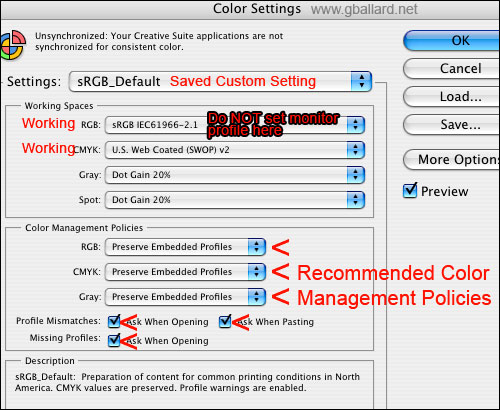
Bruce Fraser quote about these Color Management Policies settings:
- "The safest starting point is to set all Color Management Policies to Preserve Embedded Profiles, and to turn all warnings on. The other two policies change either the numbers in the images or the interpretation of those numbers automatically, which is great if that's something you understand and want to happen, but confusing at best and disastrous at worst when you don't. The warnings give you a moment's pause to consider the situation, and to act accordingly."
sRGB 2.2 gamma Color Space is recommended above as Photoshop's safest Working RGB because:
- Most cameras capture in sRGB or have a sRGB option.
- Most scanners have a sRGB scanning option.
- sRGB is arguably the target Color Space of the World Wide Web.
- sRGB is the default Color Space for Windows and OS-X (10.7).
- Most computer monitors are sRGB-compliant devices (or have an sRGB preset).
- Many printer utilities are based on or expecting sRGB.
|
|
PHOTOSHOP SAVE FOR WEB DEFAULTS
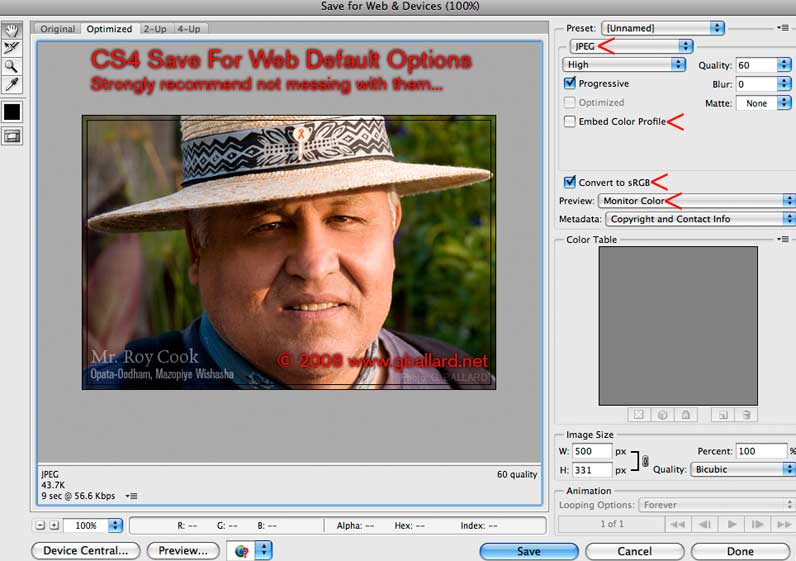
Photoshop CS6 CS5 & CS4 Save For Web & Devices (SFW) default settings are recommended because they automatically 1) CONVERT to sRGB, 2) strip the ICC profile, and 3) Preview through the monitor profile.
In Photoshop: File> Save for Web & Devices should bring up a similar window.
Note the default settings with red arrows...using SFW effectively is no more harder than clicking on the Save button at this point.
|
|
MORE DETAILED INFORMATION about saving color for the internet and testing my color theories using all the top web browsers for Windows Vista, Windows XP and Apple Mac OS-X 10.7 Lion, 10.6 Snow Leopard, 10.5 Leopard:
PHOTOSHOP COLOR MANAGEMENT THEORY
MONITOR CALIBRATION
ASSIGN or CONVERT PROFILE TUTORIAL
FireFox "Full Color Management" Value 1: configure, test & troubleshoot
SEE ICC PROFILES IN ACTION in your color-managed Web browser
TROUBLESHOOT WEB COLOR PROBLEMS
DOWNLOAD high-resolution PDI PhotoDisc reference images — now with ProPhoto and Whacked RGB targets!
|
|
by: ©2004-2012 G. BALLARD • www.gballard.net
Note: G. BALLARD prefers a shredding if he is wrong or unclear.
Please read the www.gballard.net site USER AGREEMENT, and site DISCLAIMER for legal issues regarding your use of the www.gballard.net site.
G. Ballard, www.gballard.net, receives no compensation from, and is not affiliated with Adobe Systems, Inc., or Apple Computers.
Terms of Use • Privacy Statement • Site Map
Home • About Us • Mission Statement • Press Kit • Contact Us
|
|
|